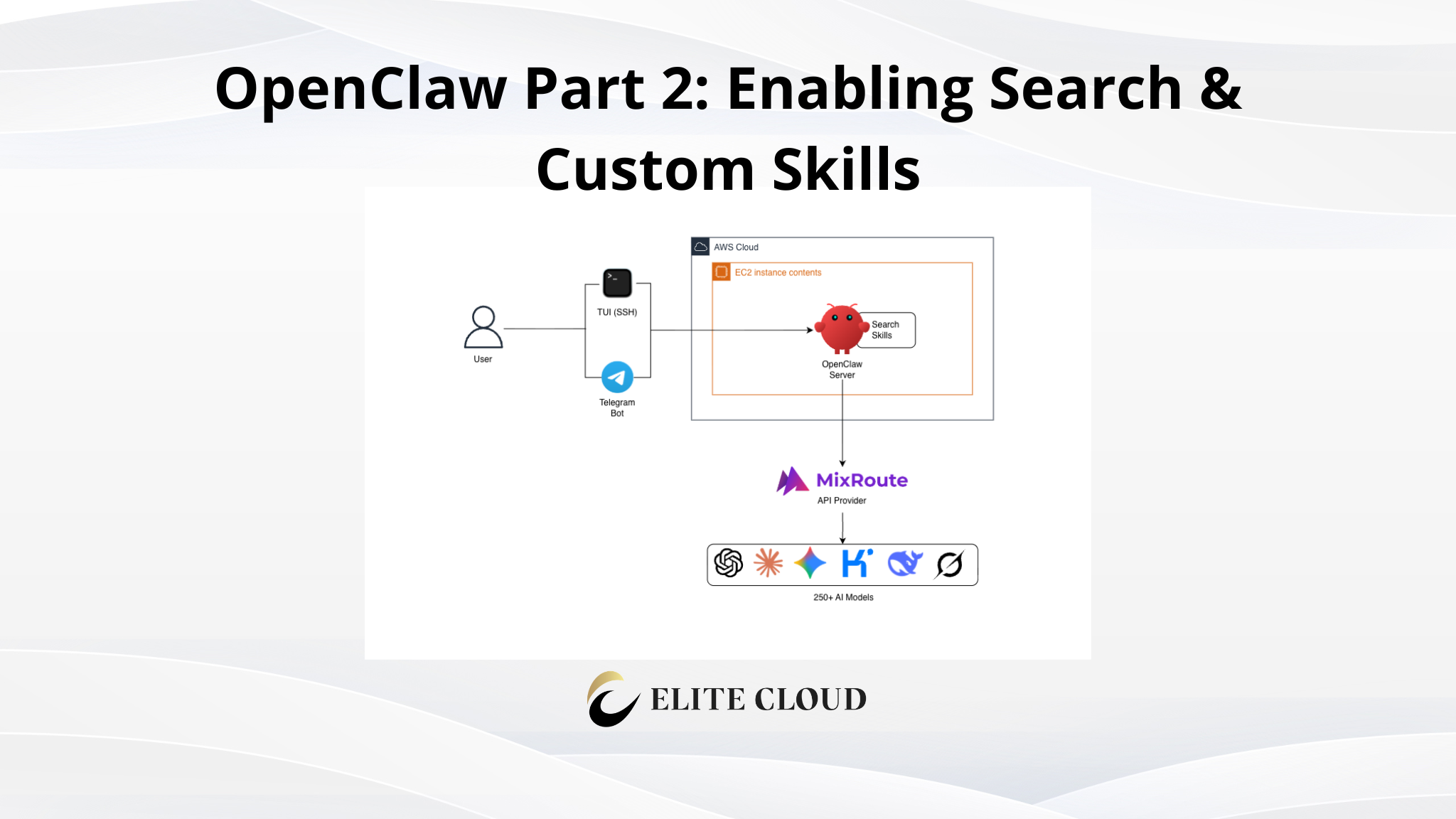
In Part 1, we deployed OpenClaw on an EC2 instance, connected it to an AI API Gateway, and controlled it through a Telegram bot. That works, but with that, OpenClaw can only talk. It can’t search anything or do skill work yet.
In this guide, we will implement those. We will enable a web search. So, OpenClaw can search the internet for the latest information. We will also install skills to extend its capabilities. Then we will put both to use by setting up a scheduled daily briefing that runs on its own and lands in your Telegram chat.
Prerequisites
- Previous OpenClaw setup from part 1
- EC2 Instance Access
- An account with a search API provider
Step 1: Enable Web Search for OpenClaw
First, get an API key from your search provider. For this demo, we will use the Brave Search API. Signup, and create a API subscription, and select the free option.
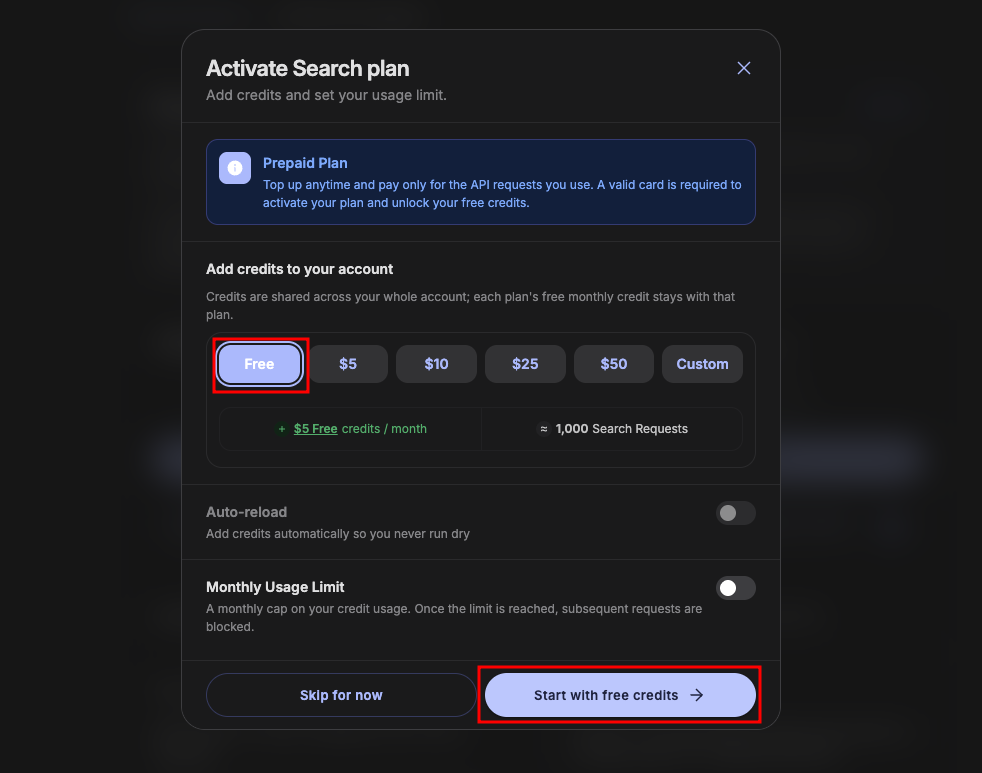
And, once you get verified with card details, you will be given a free API key.
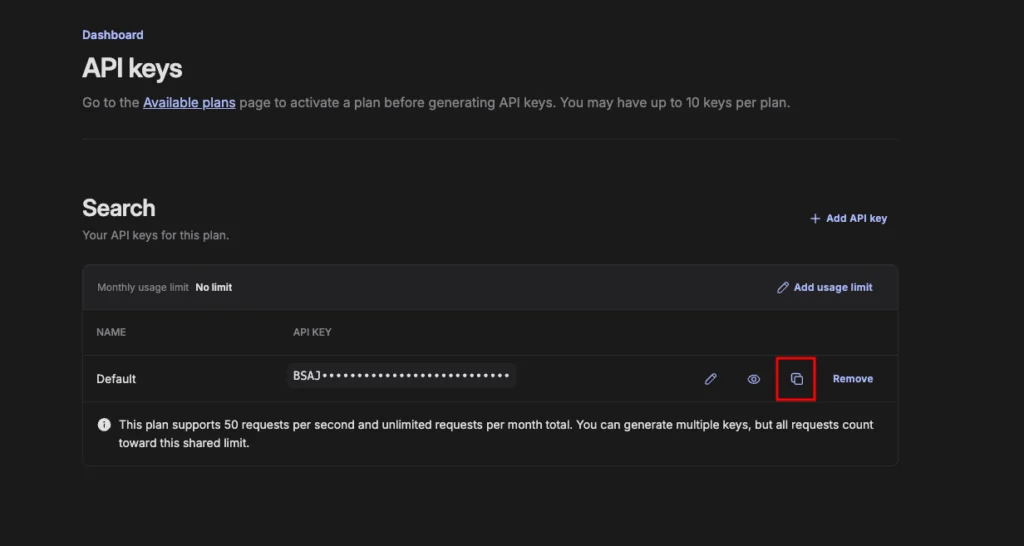
Now copy the API key and put it in the .env file with echo 'BRAVE_API_KEY=BSAJl—--Lcz_Tztupt' >> ~/.openclaw/.env

Instead of running the full setup again, we can directly jump to the search section with the command below.
openclaw configure --section web. Here, select yes.
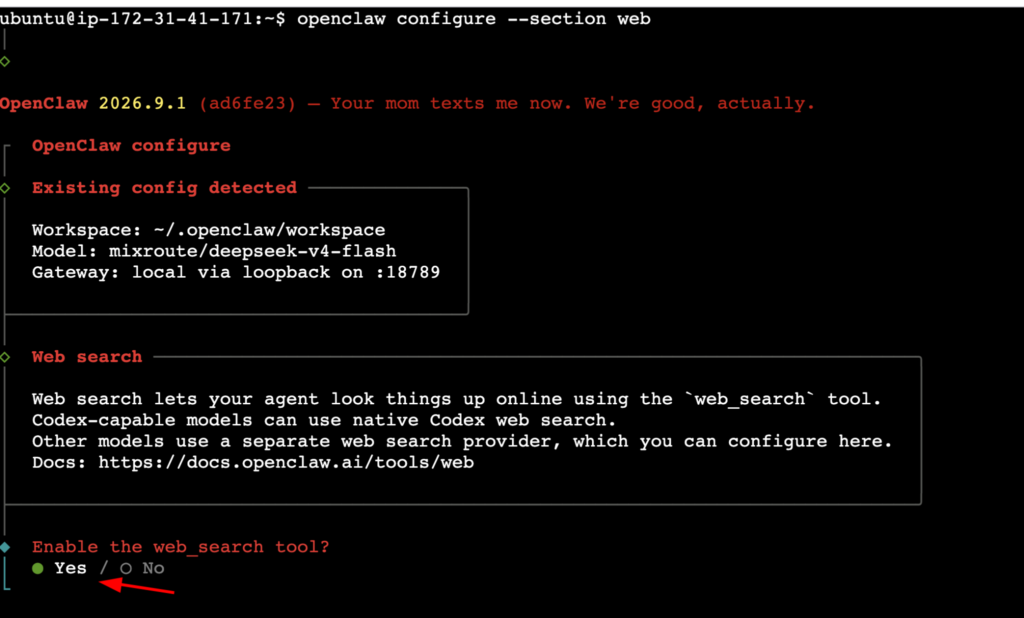
Now select Brave Search or whatever search provider API you have.
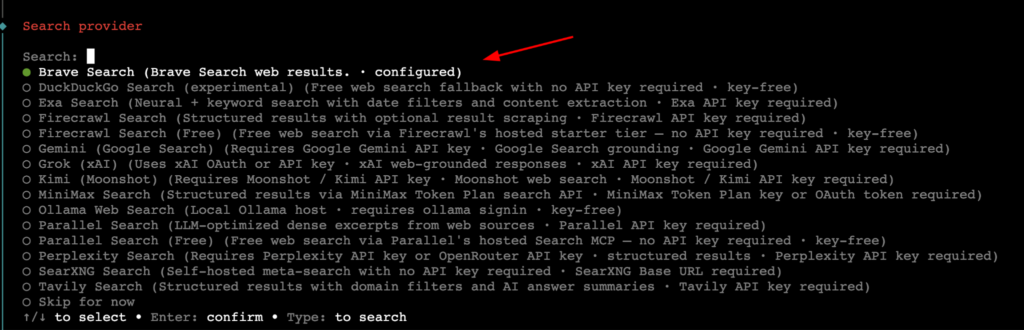
Now just hit Enter again, as we have already put that in the .env file.

It will ask you to install the web fetch tool. Just select yes.
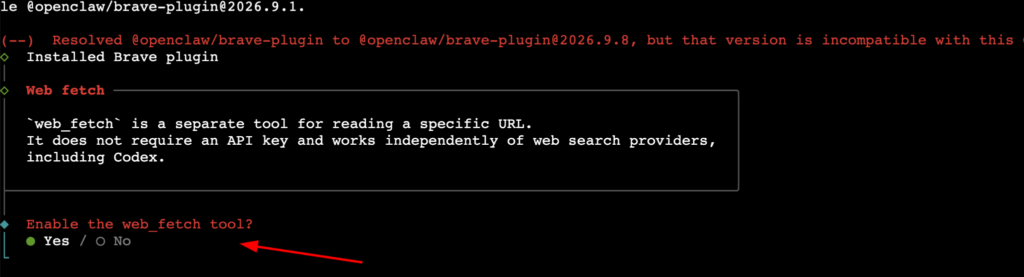
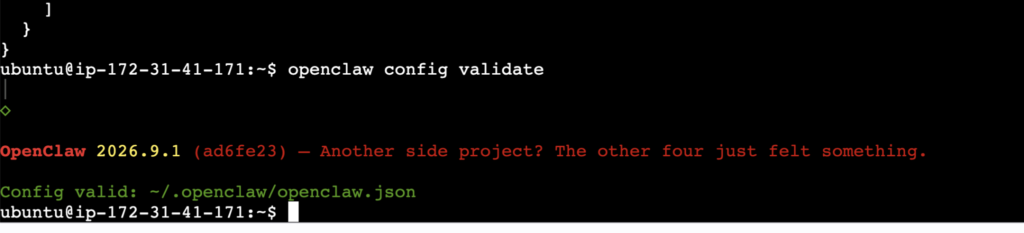
Once done, run this command openclaw config validate to see if everything is good.
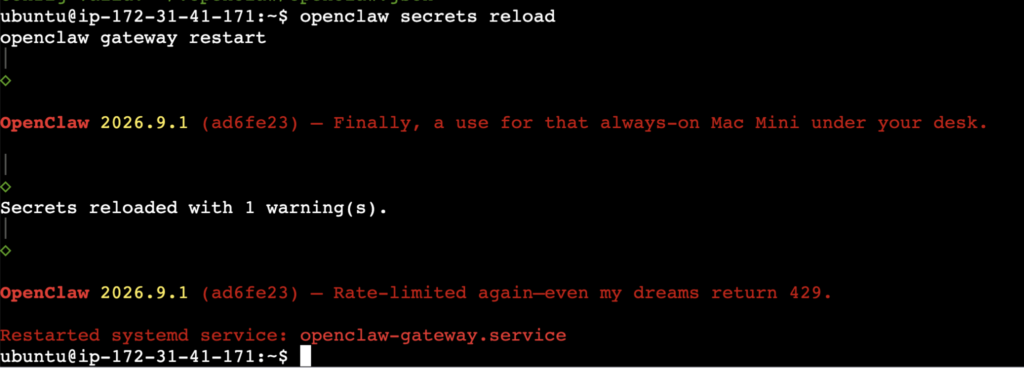
Now reload the secret and restart the gateway. openclaw secrets reload
openclaw gateway restart.
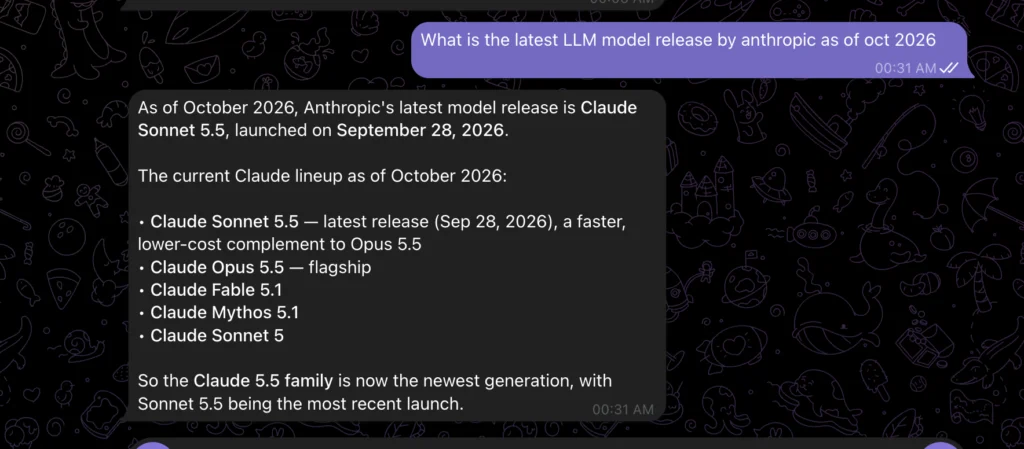
Now open your Telegram bot and ask something that needs current information, like “What is the latest LLM model release by anthropic as of oct 2026” If search is working, OpenClaw will fetch live results instead of answering from the model’s training data.
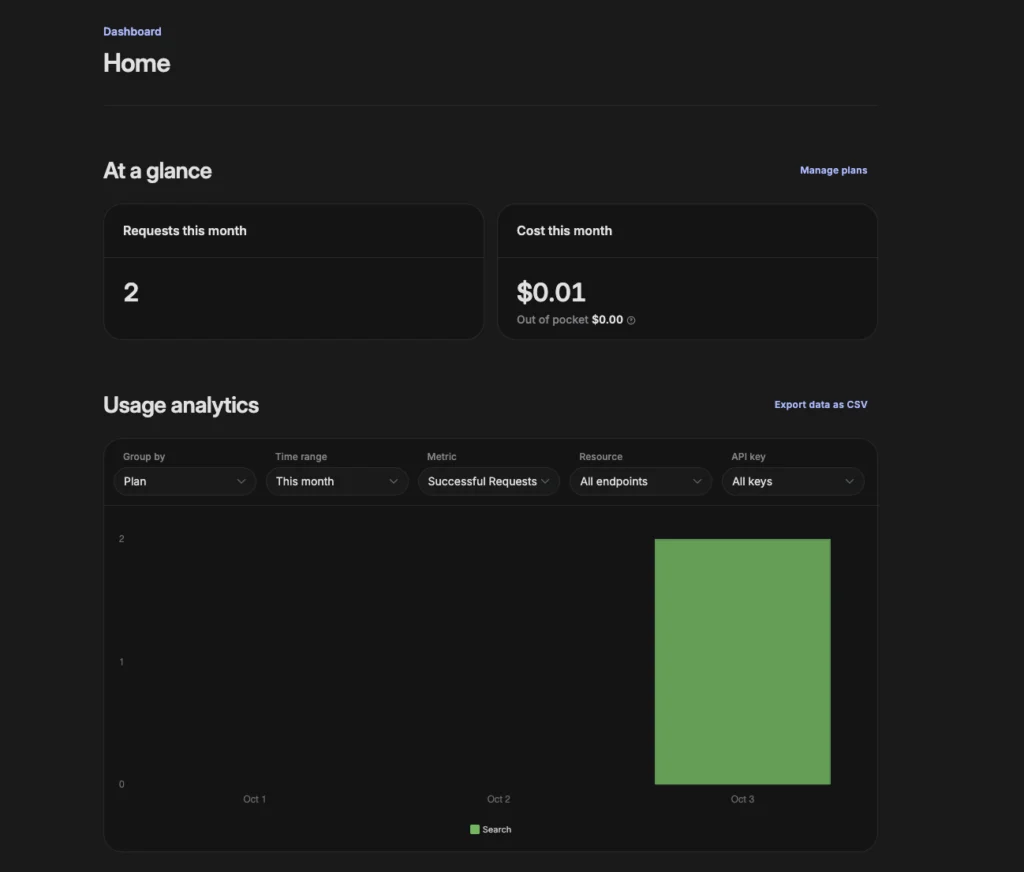
You can also monitor the usage in the Search API dashboard. This confirms the search is working fine.
Step 2: Install skills in OpenClaw
Skills are what make OpenClaw useful beyond chat. A skill is a folder with one file inside it, called SKILL.md. The file tells OpenClaw when to use the skill and what to do. In this step, we will first use a pre-made skill, then create one.
Add the Weather Skill
Run the command openclaw skills list to check if it’s already available. It should be installed by default and needs no API key.

Now run the command openclaw skills info weather to get more info about this.
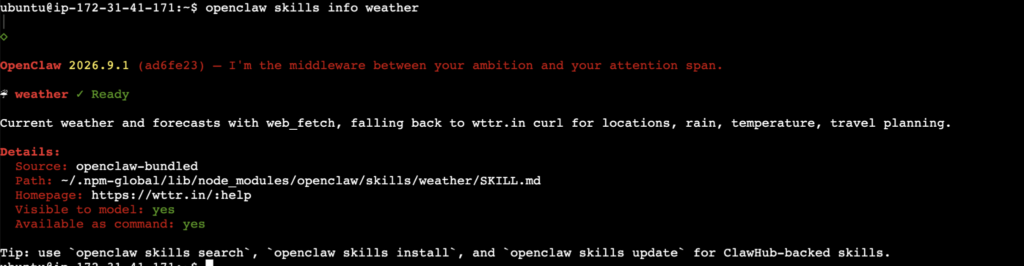
If the weather skill is not in your list, install it from the public skill registry, ClawHub, and restart the gateway.
openclaw skills install weather
openclaw gateway restart
Now let’s test it in the Telegram bot with “What’s the weather in Taipei today?”
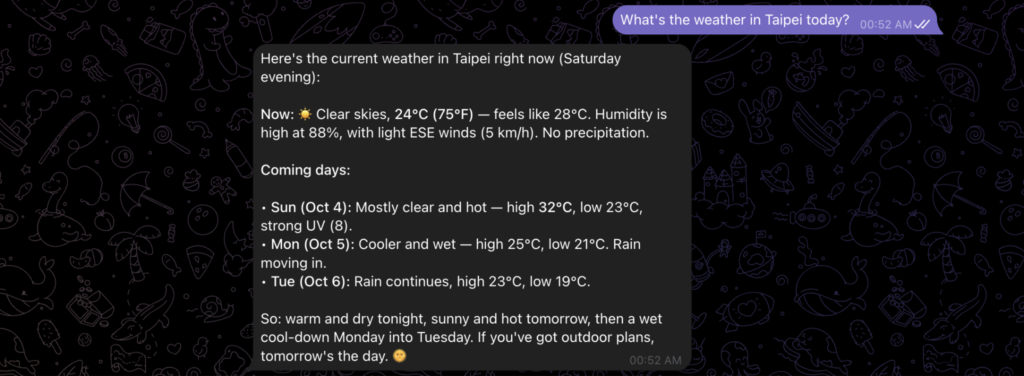
The skill is working as expected.
Note: We have changed the model from gemini to deepseek. You can look for available models here.
Build your own skill
In OpenClaw, you can make your custom skills. We will make a simple “server health” skill.
It will check the server status and reply with a summary.
Now create a directory for the skill inside the OpenClaw workspace using mkdir -p ~/.openclaw/workspace/skills/server-health command. And create the SKILL.md file with vim ~/.openclaw/workspace/skills/server-health/SKILL.md.
Paste the content below, then save and exit.
---

name: server_health

description: Check the health of the server (uptime, CPU load, memory, and disk usage).

---

# Server Health Skill

When the user asks about the server's health, status, or resources, use the `exec` tool to run these commands:

- `uptime`

- `free -h`

- `df -h /`

Then reply with a short summary in plain language: how long the server has been up, the memory used vs. total, and the disk space used vs. total. If disk or memory usage is above 80%, mention it as a warning.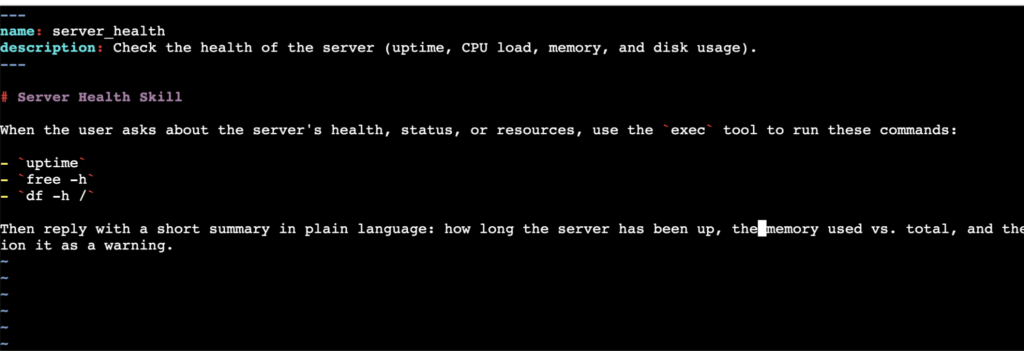
The name and description at the top are how OpenClaw decides when the skill is relevant. The instructions below are plain English. You can call it to run your custom script and share the output. So, the possibilities are wide. We are choosing the easiest option.
Restart the gateway with openclaw gateway restart and confirm the skill is loaded in the openclaw skills list.

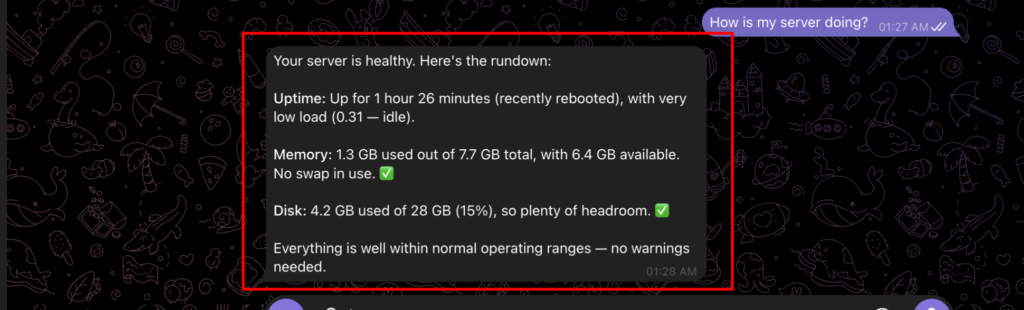
You should see server_health in the list. Now let’s test it from Telegram with “How is my server doing?”.
Note: Please make sure to take caution when creating or executing skills.
Step 3: Building the Daily Briefing
Now, in this part, we will let OpenClaw do the following every morning without us asking:
- Search for the latest news on topics we choose
- Check weather
- Check system status using a custom tool
- Summarize everything in a few lines
- Send it to our Telegram chat
First, let’s test the prompt manually by sending it to the Telegram bot.
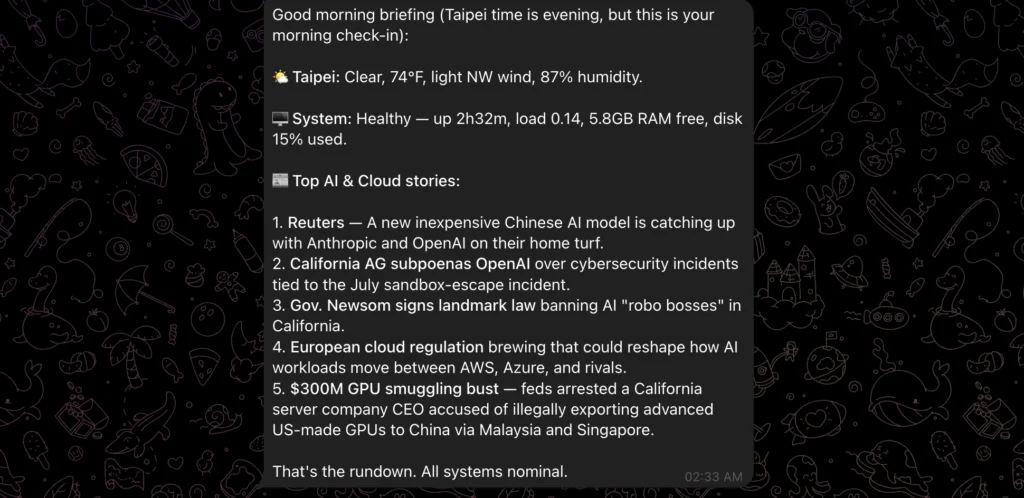
Search for the top 5 news stories today in AI and cloud computing. Also check the weather in Taipei. And check the system status. Then give me a short morning briefing: a one-line weather summary, system status, then the 5 stories with one sentence each. Keep it under 200 words.
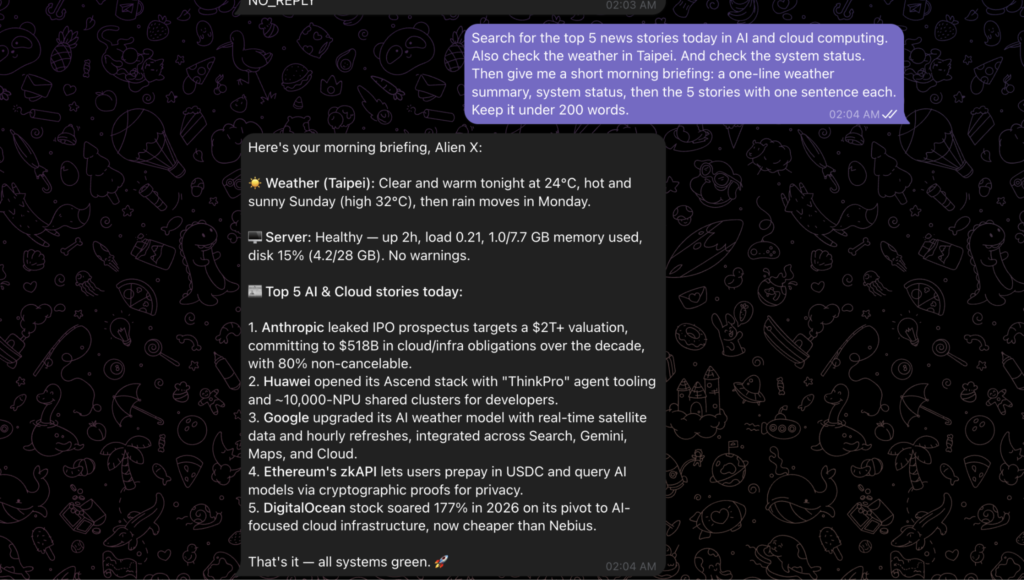
You can adjust the prompt until the output looks the way you like.
Now let’s schedule it. OpenClaw has a built-in scheduler, so you don’t need to touch the system’s crontab. Run the command
openclaw cron add "25 4 * * *" \

  "Search for the top 5 news stories today in AI and cloud computing. Also check the weather in Taipei. And check the system status. Then give me a short morning briefing: a one-line weather summary, system status, then the 5 stories with one sentence each. Keep it under 200 words.

" \

  --name "morning-briefing" \

  --tz "Asia/Taipei" \

  --announce \

  --channel telegram \

  --to "Your_Chat_ID"
Let’s break down what each part does:
- “15 4 * * *” is the schedule: every day at 4:25 AM.
- –tz “Asia/Taipei” sets the time zone for the schedule. Without it, the server’s time (UTC on EC2) is used. Change this to your own time zone.
- –name gives the job a readable name.
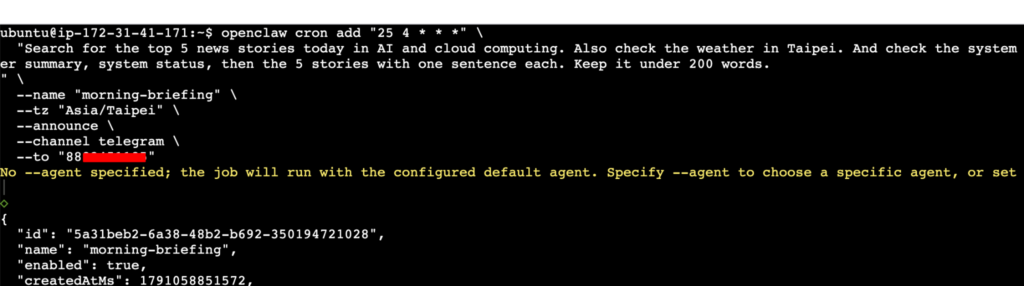
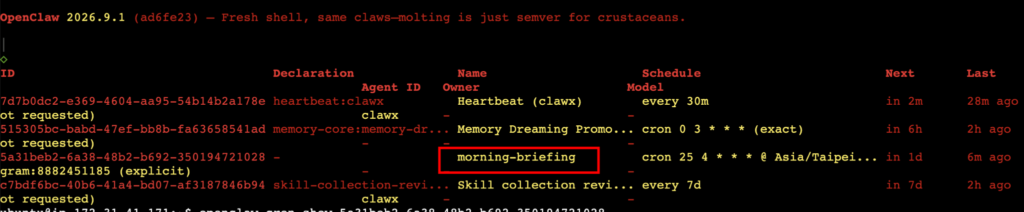
Now check if that job was created using openclaw cron list.
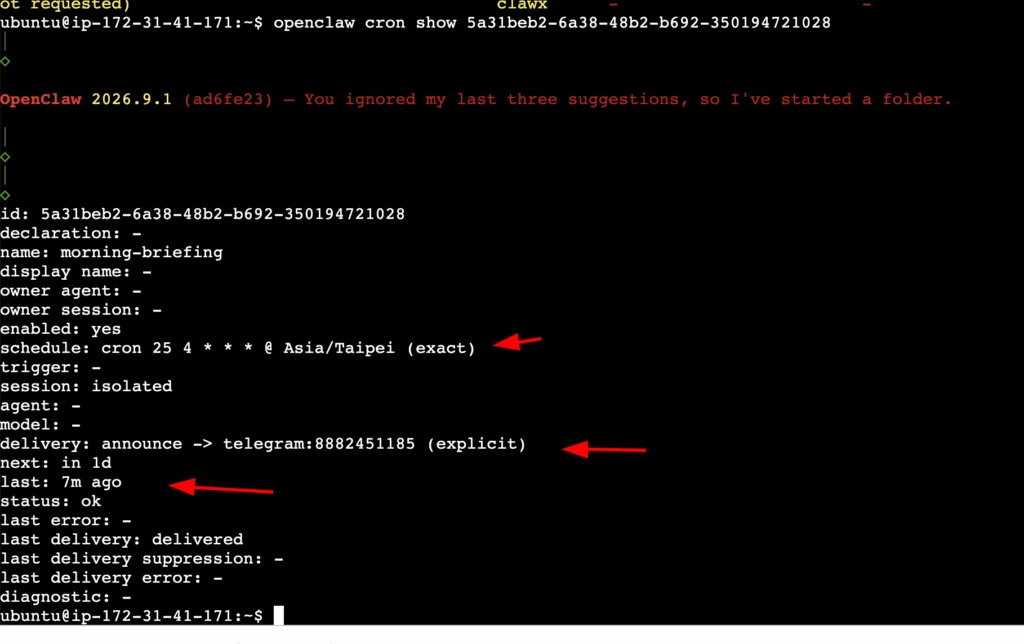
You can see the details, including where the message will be delivered, using openclaw cron show <job-id>.
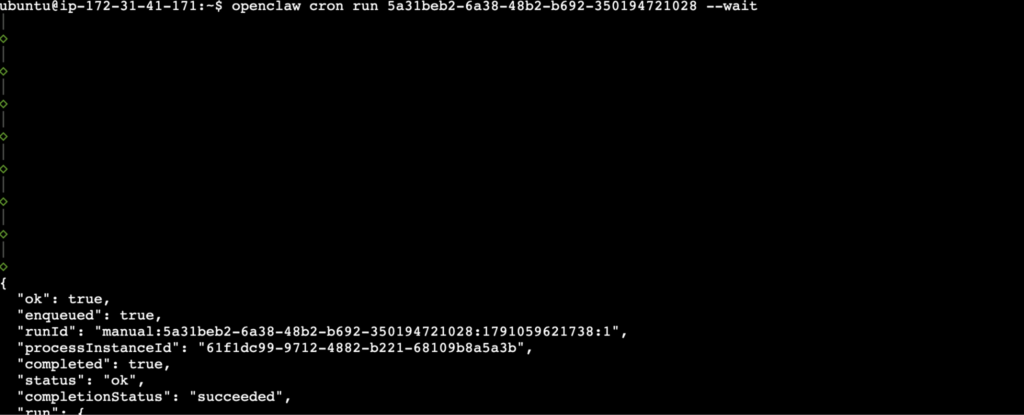
To test it without waiting for the specified time, you can use the command openclaw cron run <job-id> --wait to trigger it manually.
Clean Up
If you are done testing the cron, remove it by using the following command openclaw cron rm <job-id>.

Best Practices
Security
Every skill you add and every scheduled job you create increases what OpenClaw can do on its own, unattended. Keep the list small. Also, a search-enabled agent reads content from the internet, and that content can contain instructions meant to trick the model. Don’t give an agent with search access more permissions than it needs.
Cost Management
A scheduled job calls your LLM API every time it runs, and search-based prompts use more tokens because the results get added to the context. One briefing a day is cheap, but if you add many jobs that run every few minutes, the costs add up. Check your LLM API usage dashboard after the first few days, and keep an eye on your search API’s free tier limits.
Keep It Focused
A short, specific prompt with a clear output format gives more consistent results than a long, open-ended one. If the briefing is too long or off-topic, tighten the prompt before you change anything else.
Final Word
That was it for this article. In the next part, we can look at hardening this setup: moving keys to a proper secrets provider, restricting the security group, and running OpenClaw with fewer privileges.